Vin Solutions
Built for automotive dealerships
Learn more about RingCentral's solutions for automotive dealerships.
Vin Solutions is a CRM built for automotive dealerships, part of the Cox Automotive family of products. RingCentral's integration with Vin Solutions brings click-to-dial, screen-pop, and automatic call logging directly into the tools your sales and service teams already use.
Setup and configuration
Important: enable the integration first
To have Vin Solutions appear in your list of available App Connect connectors, contact Sales to have the integration enabled for your account.
Step 1: Enable RingCentral inside Vin Solutions
Once Sales has enabled the integration for your account, an admin needs to turn it on inside Vin Solutions before anyone can connect.
- Log in to Vin Solutions as an admin.
- Navigate to Settings.
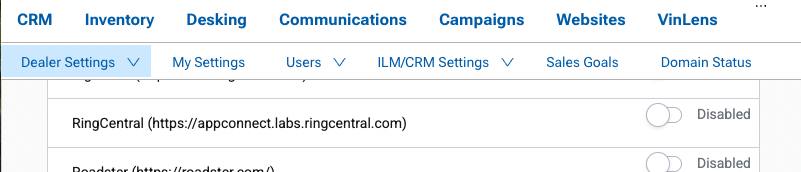
- From the Dealer Settings menu, select Partner enablement.
- Wait for the list of partners to load.
- Under Application Service Providers, find RingCentral and toggle the integration to the on position.
- Under Call Tracking Providers, find RingCentral and enable it as well.
Step 2: Install App Connect
With the integration enabled inside Vin Solutions, installation continues with the regular App Connect installation process.
- If you haven't already, install App Connect from the Chrome or Edge web store.
- From the list of connectors, select Cox Automotive.
Don't see "Cox Automotive" in the list?
If "Cox Automotive" isn't showing up as an available connector, it likely hasn't been enabled for your account yet. Contact Sales to have it turned on.
Step 3: Connect your account
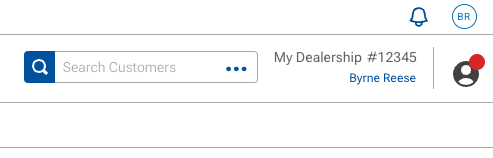
Where do I find my dealer ID?
Your dealer ID is located in the upper-righthand corner of the Vin Solutions application after you login. It is in the form of "<dealership name> #<dealer ID>". See the screenshot below. Based on the screenshot, the dealer ID is "12345."
Once Cox Automotive is selected, log in using:
- Dealer ID — found in the upper right-hand corner of the Vin Solutions app.
- User ID — provided by your Vin Solutions administrator.
Once connected, App Connect will begin logging calls and SMS against your Vin Solutions records, and screen-pop customer information as calls come in.
Optional: Set up shared authentication for your dealership
Rather than having every employee track down their own Dealer ID and User ID, an admin can pre-configure these values for the whole dealership. Once set up, connecting to Vin Solutions becomes a one-click experience for everyone else — nobody has to hunt for their credentials.
- Open App Connect and go to the Admin tab.
- Navigate to Shared authentication.
- Select Account managed auth and enter your dealership's Dealer ID. This value applies to every user on the account.
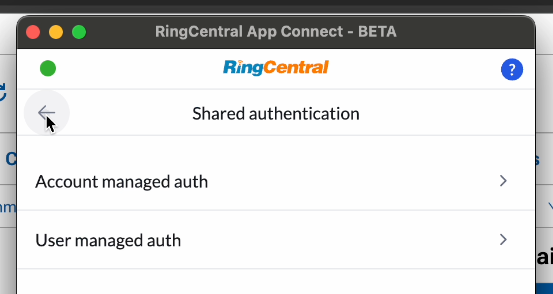
- Select User managed auth and enter the Vin Solutions User ID for each employee.
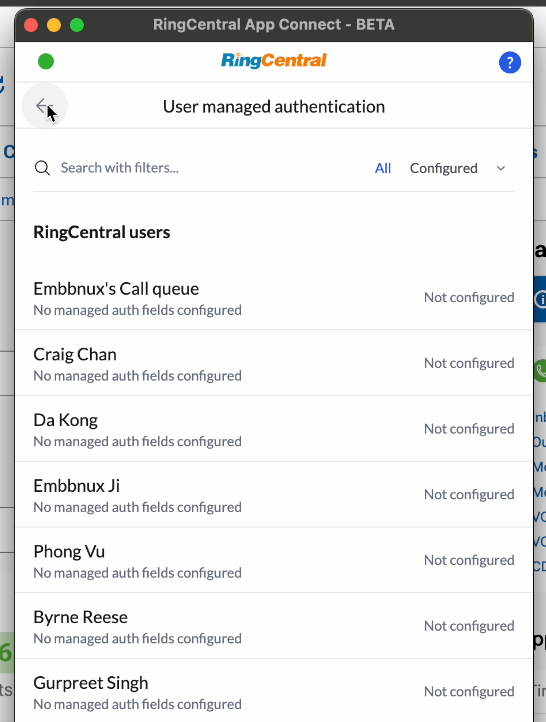
With both values configured, dealership personnel can connect to Vin Solutions without ever needing to know or look up their own User ID.