Setup and installation
RingCentral's App Connect is a browser extension for Google Chrome and Microsoft Edge that is available in their respective stores. Installation is quick and easy if you are accustom to installing browser extensions. Click the web store button below to get started.


Managing App Connect from the Admin Console
The Admin Console is new and still being actively developed.
RingCentral App Connect now includes a web-based Admin Console, giving administrators a central place to manage App Connect without needing to install the browser extension themselves. Today, the Admin Console lets you:
- Setup and configure Universal Logging (aka server-side call logging)
- Access reports and usage analytics
- Manage settings across your company
- Check connectivity health to your CRM
- Discover and install plugins
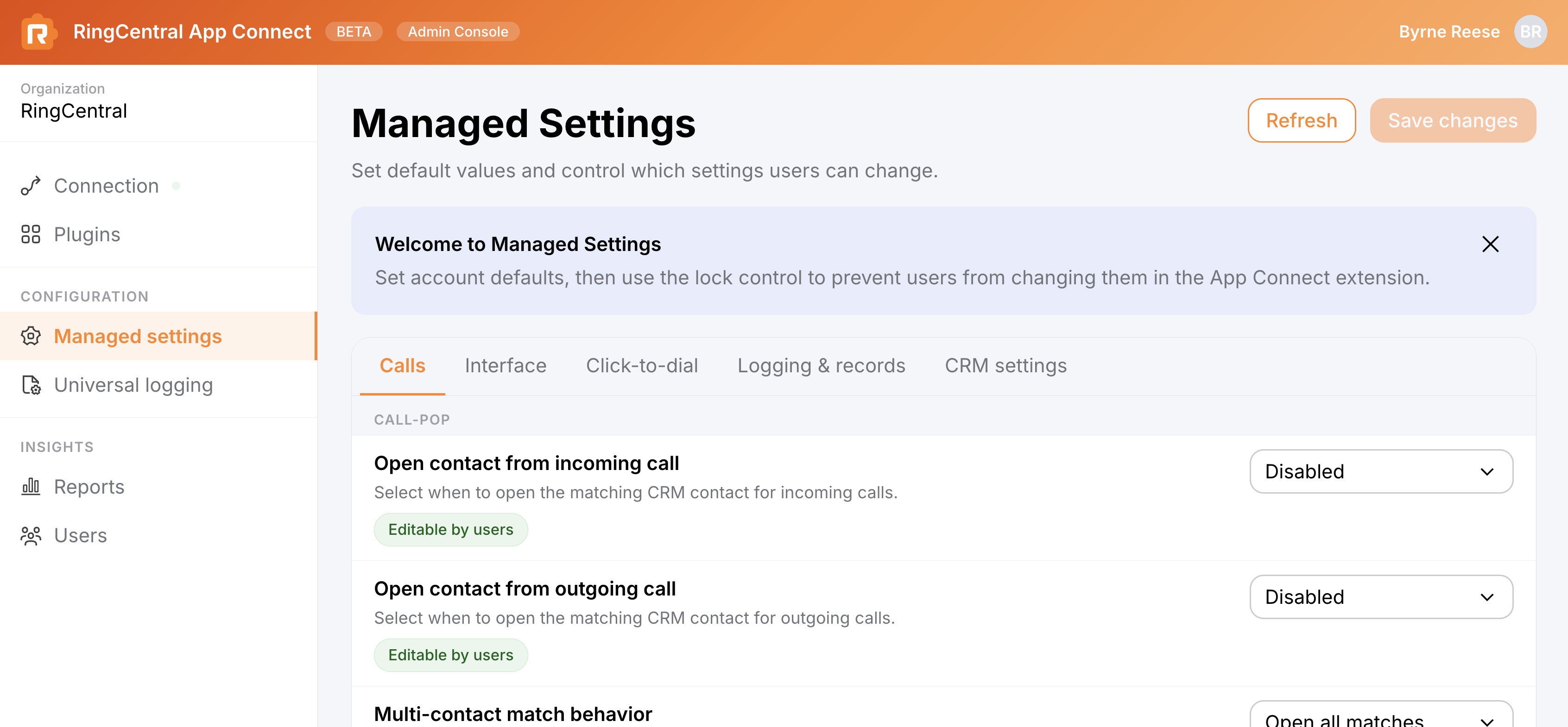
All of this same functionality is also available from the Admin tab inside the App Connect browser extension. We built the web-based Admin Console to make it easier for admins to set up and manage App Connect and, if needed, configure activity logging across their company without requiring every user to download and install the browser extension.
Installing the browser plugin
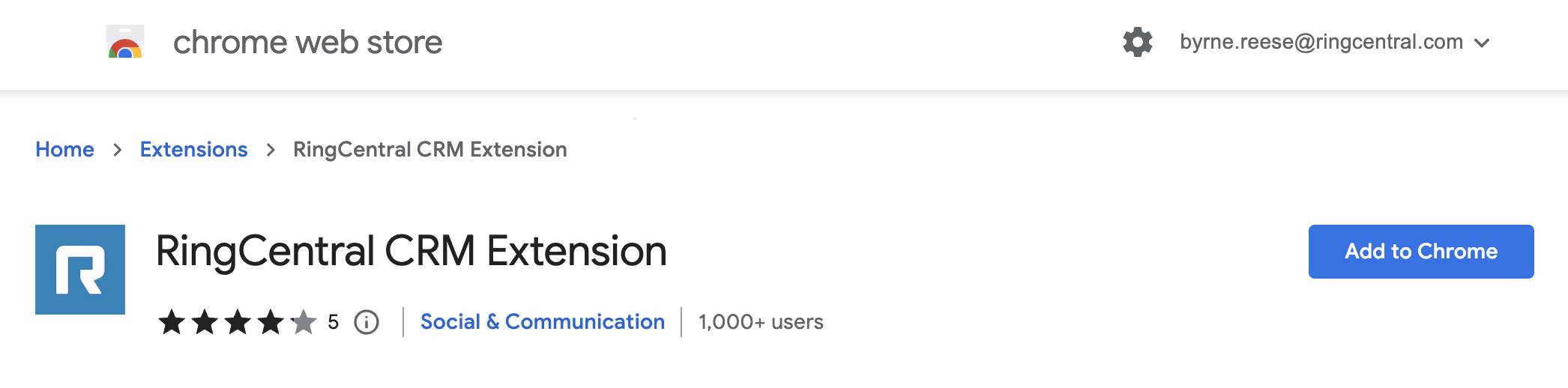
Google Chrome
App Connect is installed easily from the Google Chrome web store. Click the "Add to Chrome" button to install the extension instantly. Then, consult the instructions specific to your CRM.
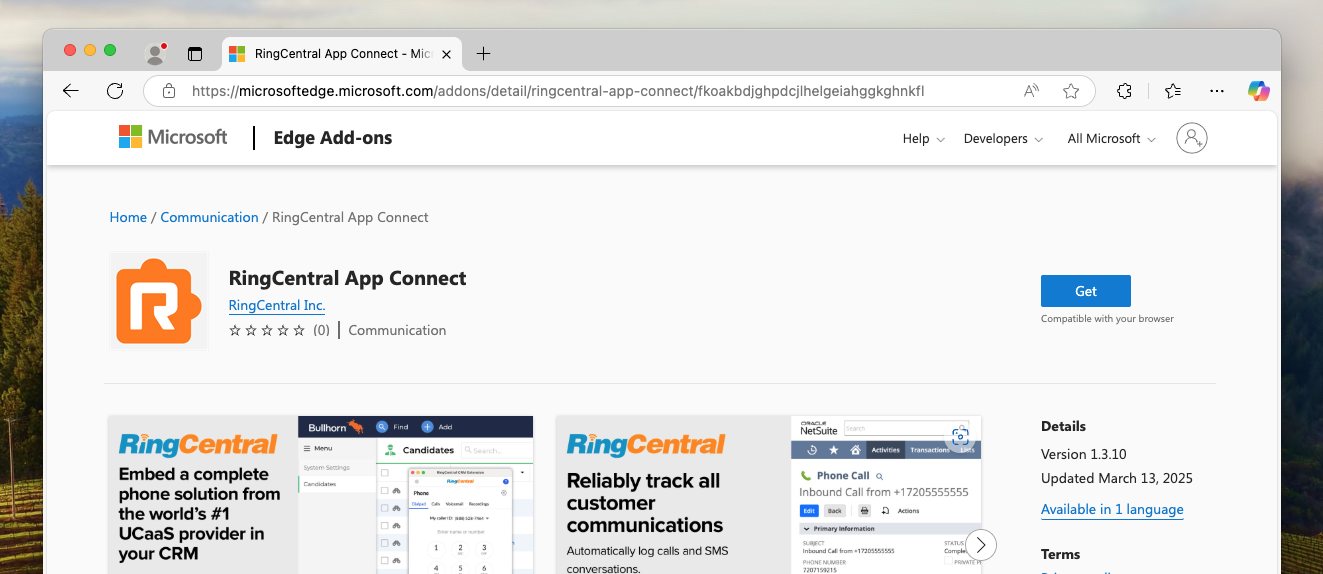
Microsoft Edge
App Connect is installed easily from the Microsoft Edge store as well. Click the "Get" button to install the extension instantly. Then, consult the instructions specific to your CRM.
Connecting to your CRM
The process of connecting App Connect to your CRM is more or less the same at a high-level.
- First, navigate to and login to your CRM.
-
While viewing a page in your CRM, open up the extension by clicking the App Connect badge.

-
Open the "More" tab and select "Settings."
- Scroll down to find your CRM, and click the "Connect" button.
- Follow the on-screen instructions for your CRM.
Each CRM may have a slightly different approach in order to install the extension fully. Consult the full list of supported integrations for CRM-specific setup and configuration instructions.
Accessing the dialer
Once installed, App Connect can be opened in two ways.
Click the quick access badge
When logged into and viewing your CRM, an orange "R" badge will appear in the lower-right corner of your browser window. Click it to open the dialer and bring it to the foreground.
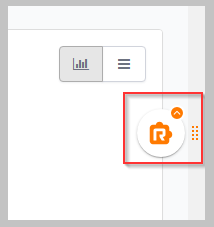
If the badge obscures page content you can control which sites it appears on from Settings > General > Enabled domains.
Pin App Connect to your browser bar
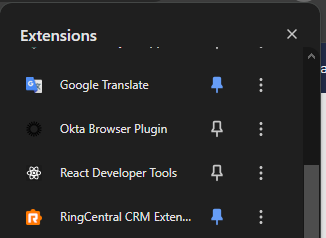
You can also open App Connect by clicking its icon in your browser's extension bar. Pin it for quicker access by opening the extensions menu and clicking the pin icon next to RingCentral App Connect.