Using the App Connect admin console
The App Connect admin console gives App Connect administrators a slightly wider view into the administrative functions of the product than what's available inside the Chrome extension. Almost everything you can do in the admin console, you can also do in the Chrome extension.
Why use the admin console
The most important advantage of the admin console is that it lets an admin set up, configure, and enable logging across their entire account without requiring their users to download and install the browser extension.
We still recommend installing the browser extension for every user
While the browser extension is technically optional once logging is enabled from the admin console, we always recommend that users install it. It's the best — and only — way for an individual to check which of their calls weren't logged and resolve those issues manually.
Managing logging across your company
Setting up App Connect to log calls across your company — without requiring users to install the browser extension — takes just a few steps:
- Log in to the admin console.
-
Connect to your CRM.
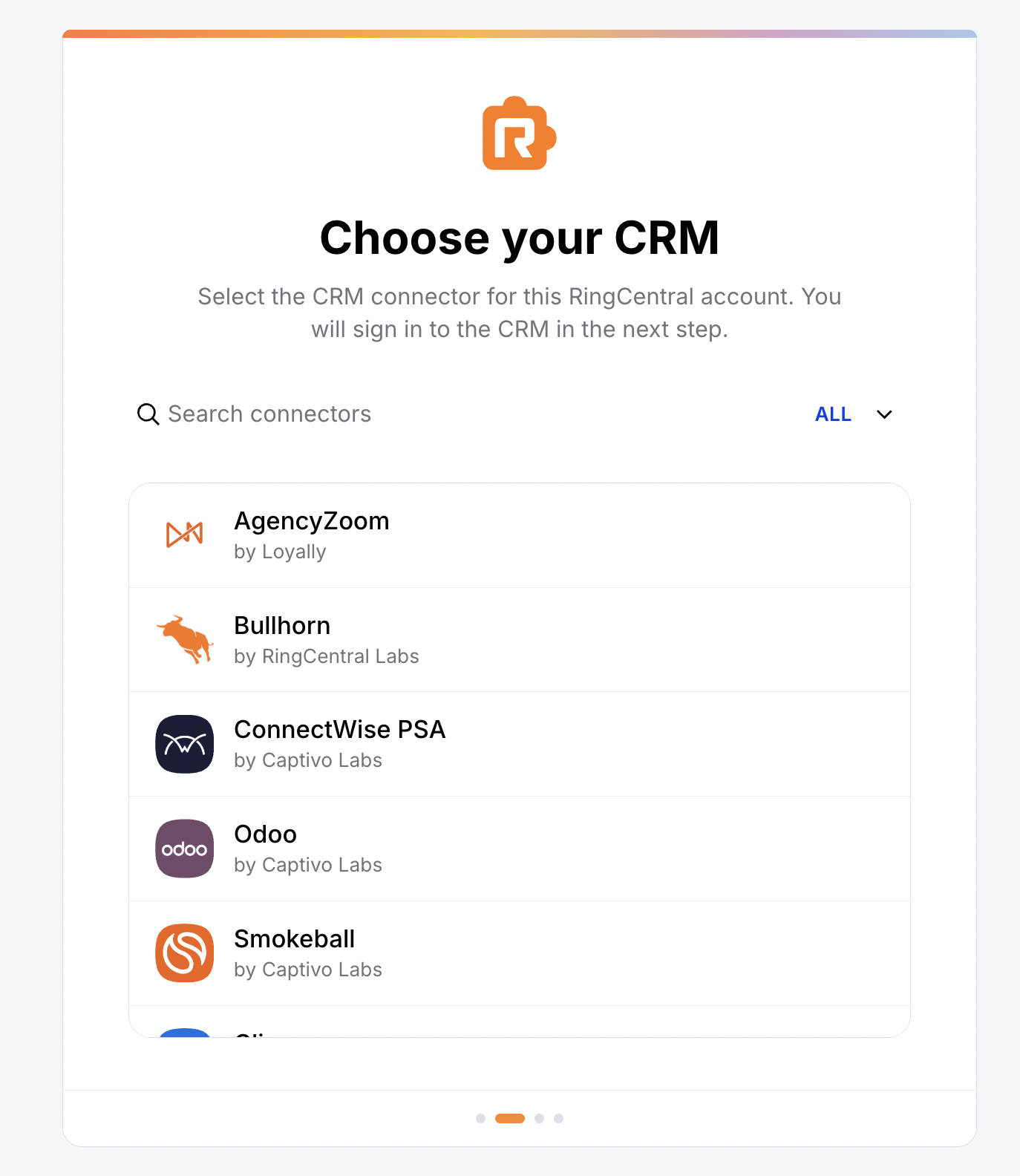
Choosing your CRM from the admin console -
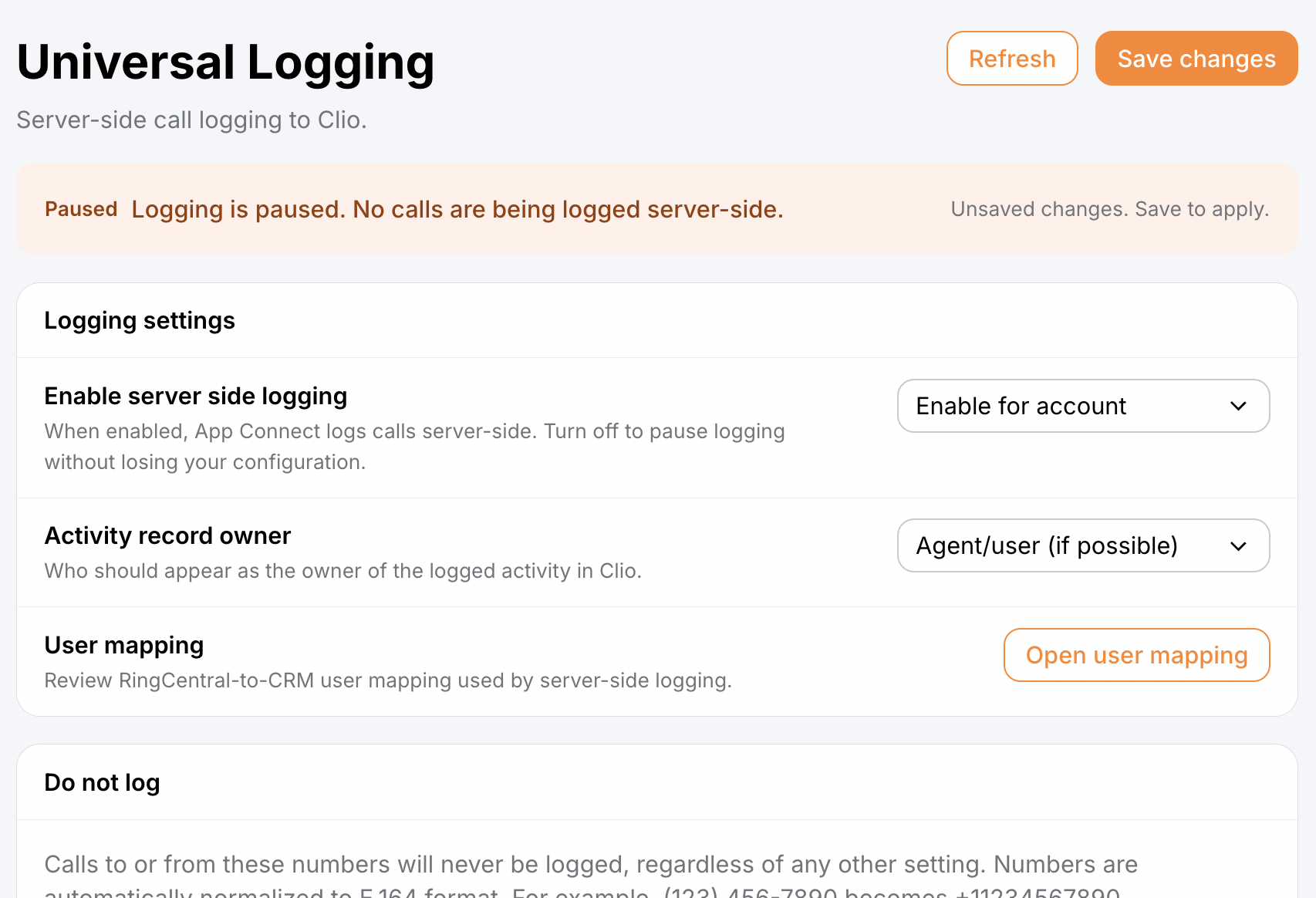
Navigate to Universal Logging.
- Enable it for your company.
- Click Save.
- Go to Managed settings and set and lock down your logging preferences for the company.
Viewing your company's call history
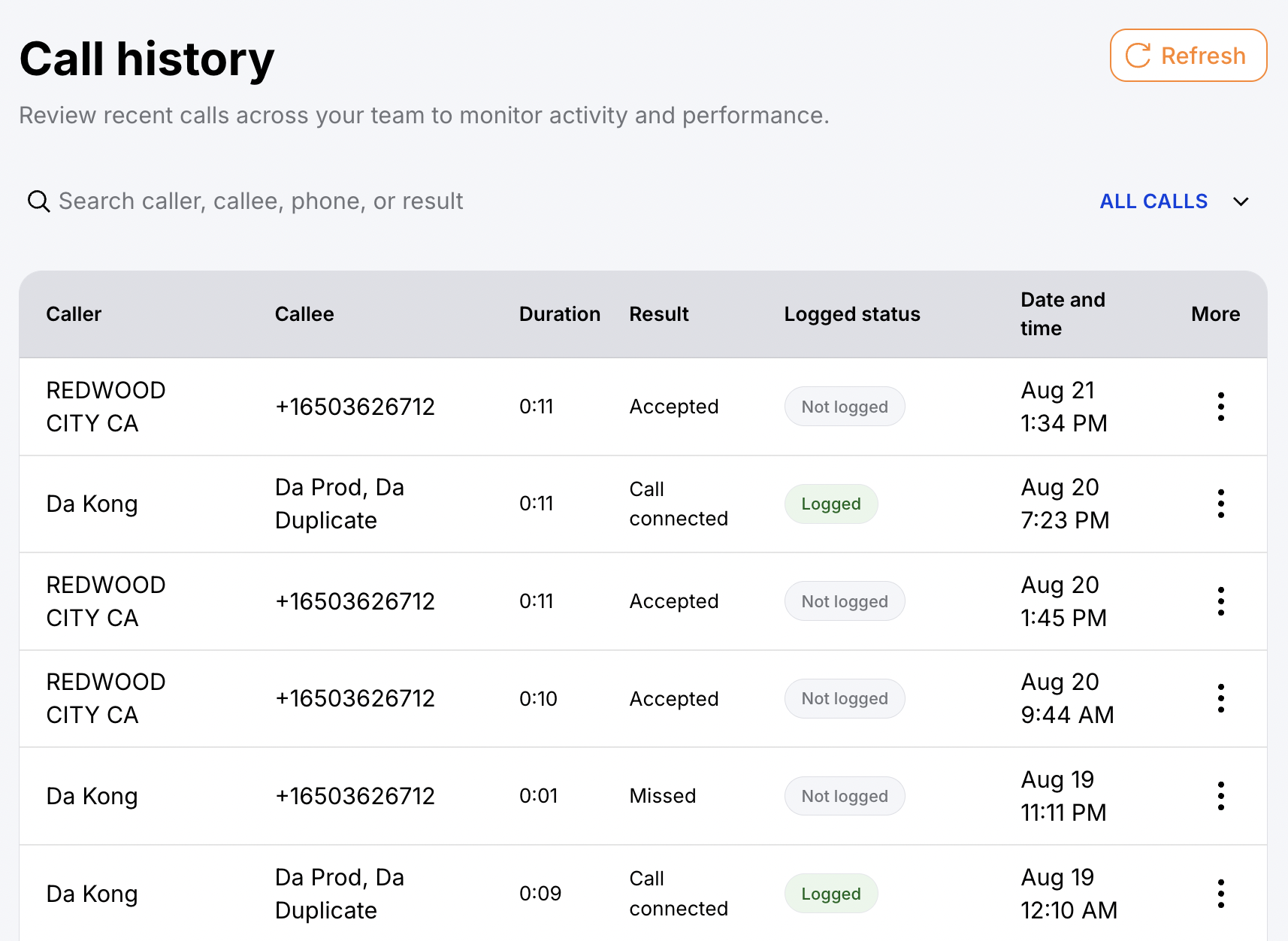
The admin console has one feature you won't find in the browser extension: a view into your whole account's call history. From here, admins can:
- View past calls across the company
- See which calls were logged and which weren't
- Access agent notes, transcripts, and summaries
- Listen to call recordings
- Get quick access to linked contacts and activity records in the CRM
Features shared with the browser extension
The following areas are available in both the admin console and the browser extension.
Managed settings
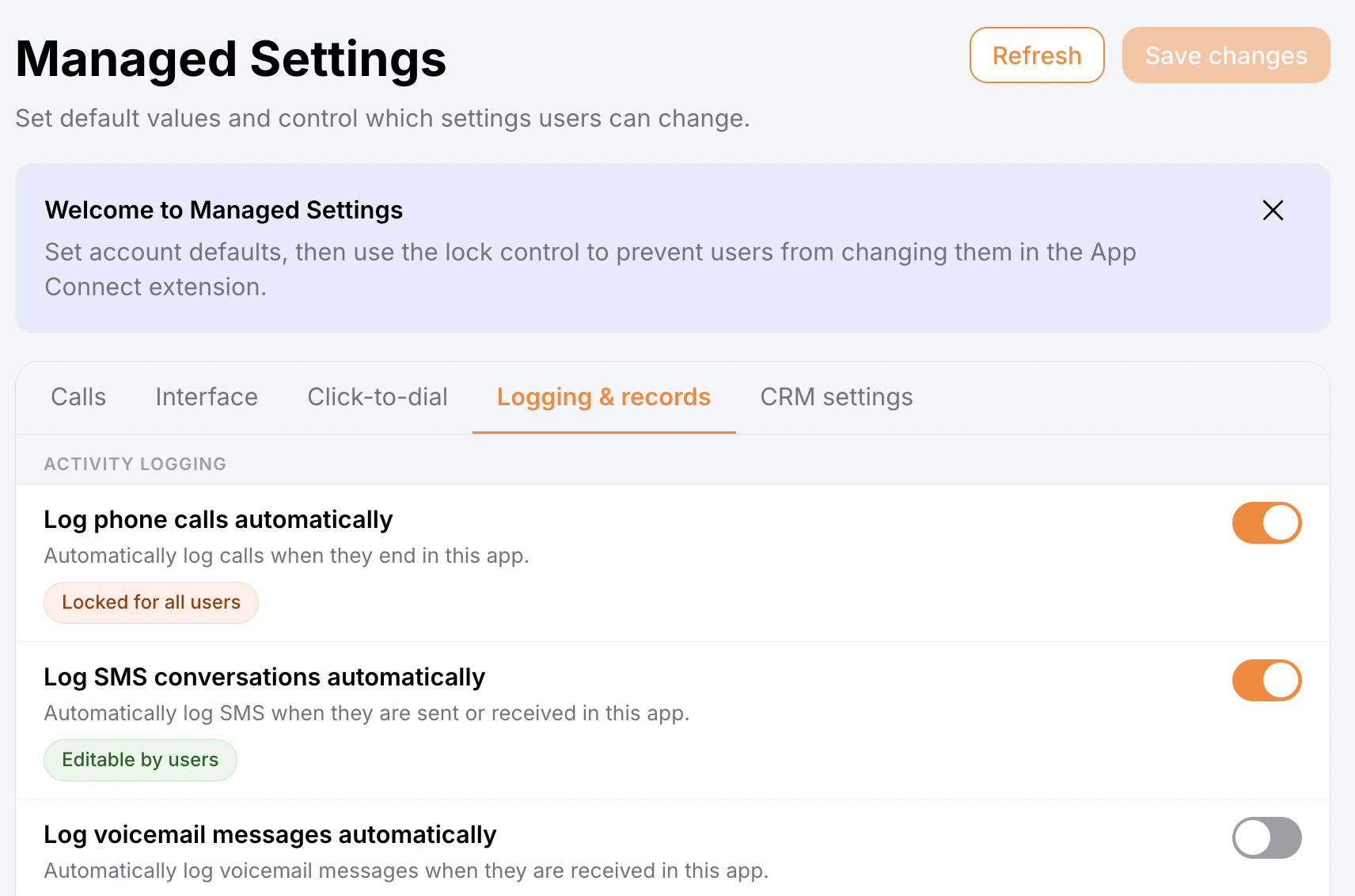
Managed settings let admins set and lock down preferences on behalf of their users. A locked setting shows as "Locked for all users," while settings left open show as "Editable by users."
User mapping
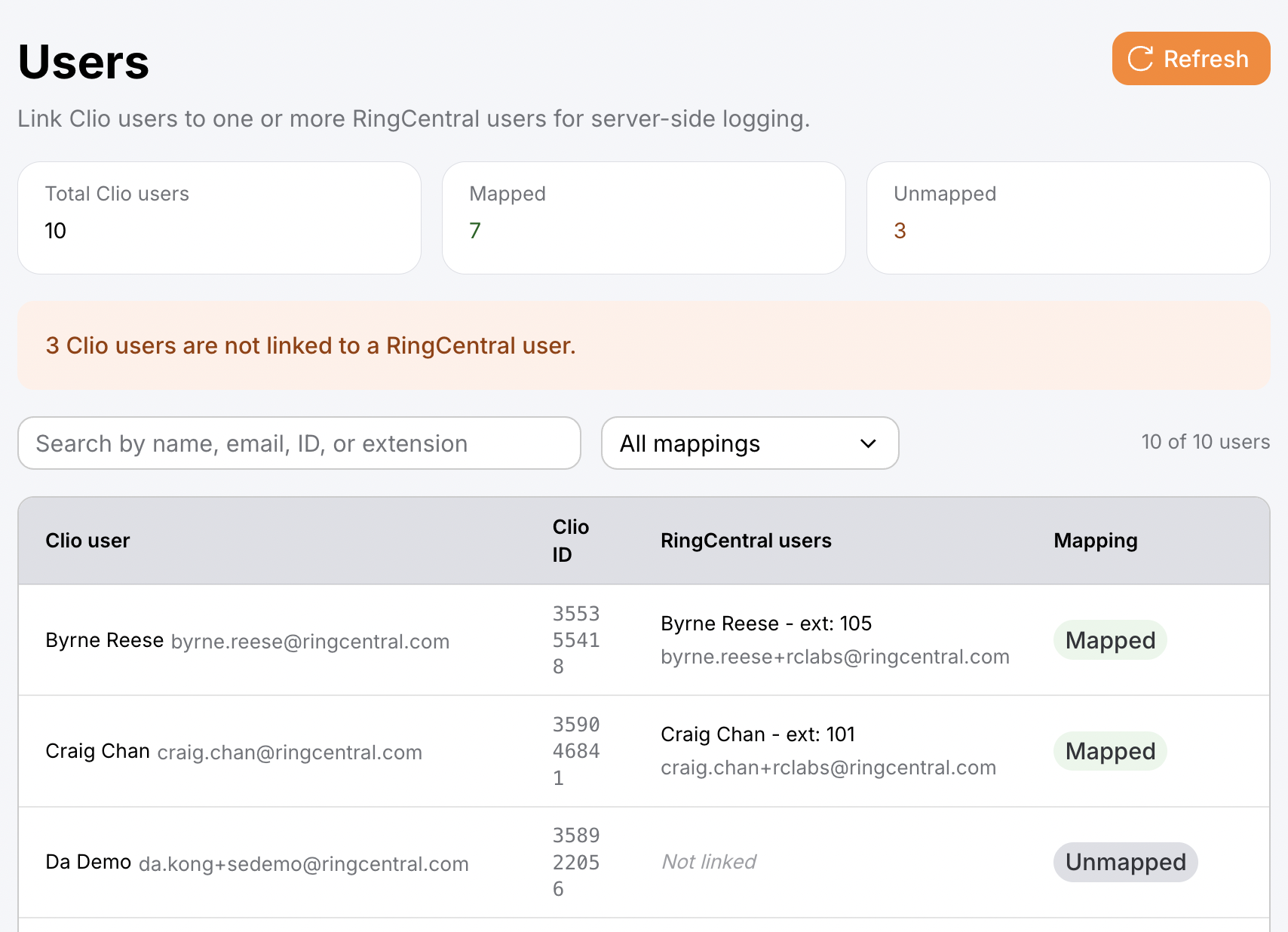
If your connector supports it, admins can map RingCentral users to their corresponding CRM users, so that activity records are attributed to the right person. See Activity record owner.
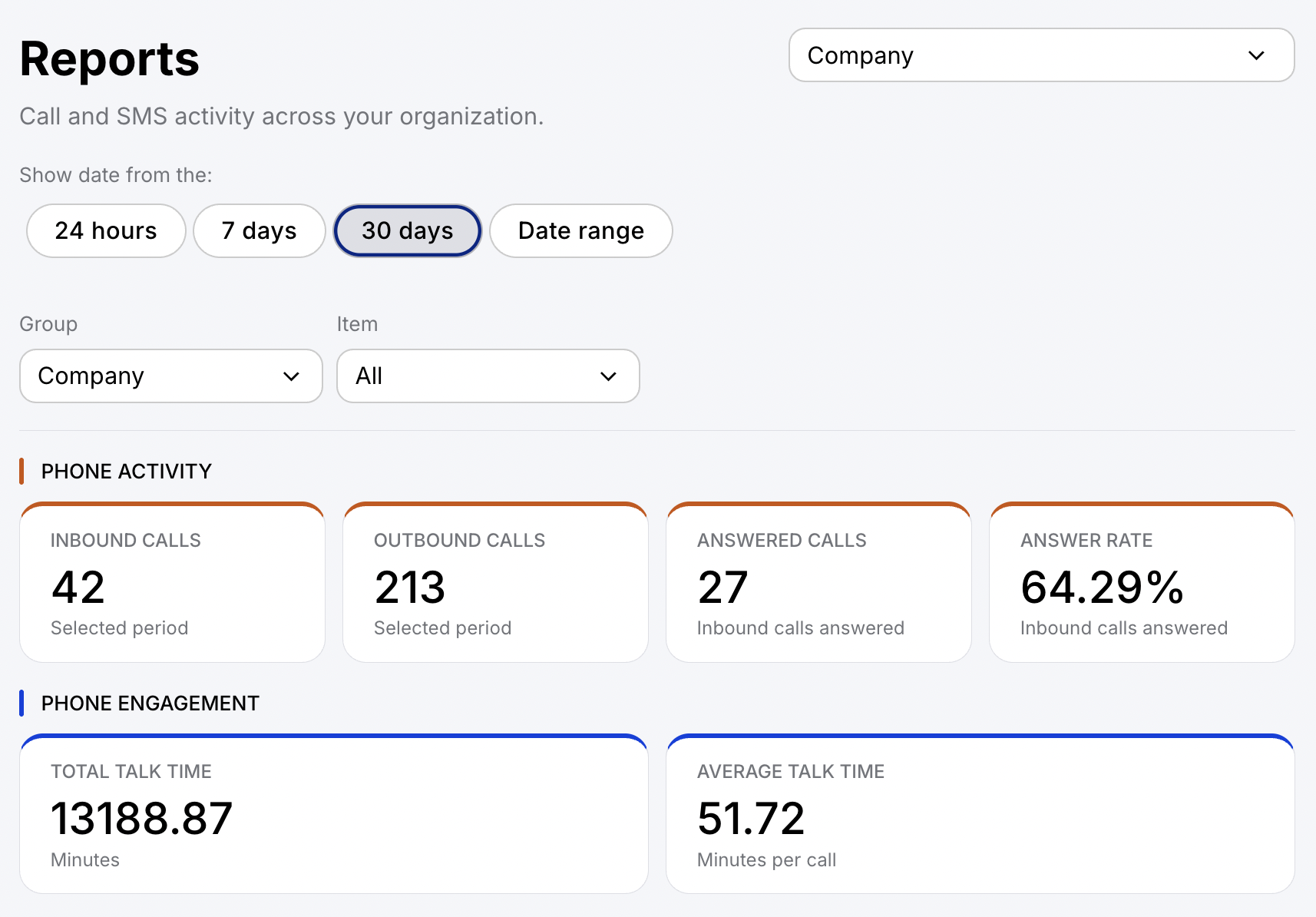
User and company reports
User and company reports let you review calling and messaging statistics for individual users or your whole organization.
Universal logging
Universal logging (also referred to as server-side call logging) enables account-wide call logging that doesn't depend on users having the browser extension installed.
Plugin management and installation
Plugin management and installation let admins browse, install, and manage plugins for their account.